By Mees de Beukelaar
Fixing Transcription Errors for Social Media
Fix transcription errors to make social video captions accurate—remove fillers, use confidence scores, and export SRT/VTT for better engagement and visibility.
Originally published March 7, 2026
In this article
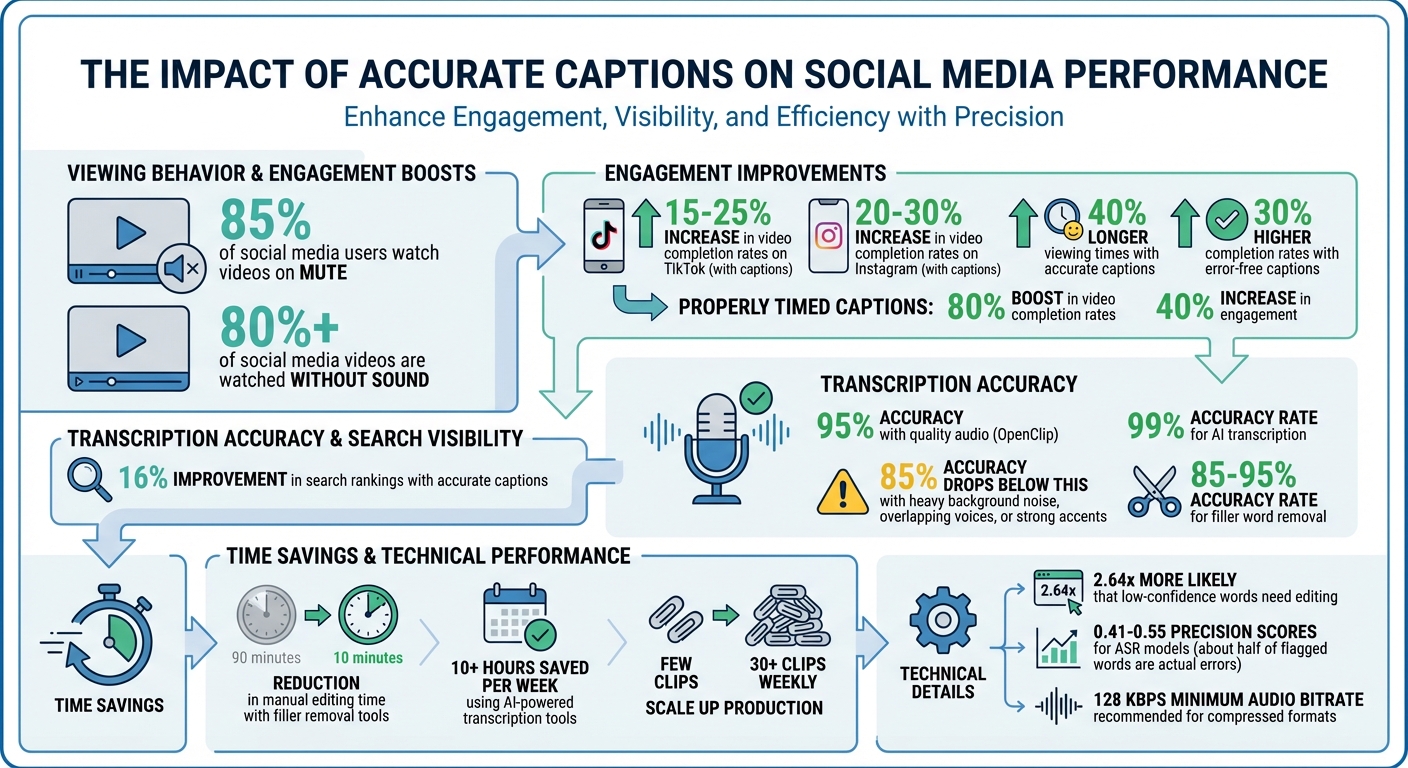
85% of social media users watch videos on mute, making captions essential for engagement and discoverability. But transcription errors - like misinterpreted brand names or technical terms - can hurt your content's impact. Tools like OpenClip streamline transcription, offering features like 95% accuracy with quality audio, filler word removal, and smart dashboards to refine captions quickly.
Key Takeaways:
- Engagement Boost: Captions can increase video completion rates by 15–25% on TikTok and 20–30% on Instagram.
- Search Visibility: Accurate captions improve search rankings by up to 16%.
- Common Issues: Auto-generated captions often misinterpret words, struggle with accents, and include filler words.
- Solutions: Use tools like OpenClip for confidence scores, synced audio playback, and one-click edits.
Accurate captions don't just make your videos accessible - they also improve retention, enhance visibility, and save time during editing.
Impact of Accurate Captions on Social Media Video Performance
How to fix captions in Premiere Pro
Preparing Your Video for Transcription
Good audio quality is essential for accurate AI transcriptions. While OpenClip automates the transcription process, a bit of preparation on your end can significantly cut down on errors and save you time during editing. Keep in mind: when it comes to transcription, audio quality matters much more than video resolution. AI transcription tools analyze sound waves, not visuals.
Uploading Content to OpenClip
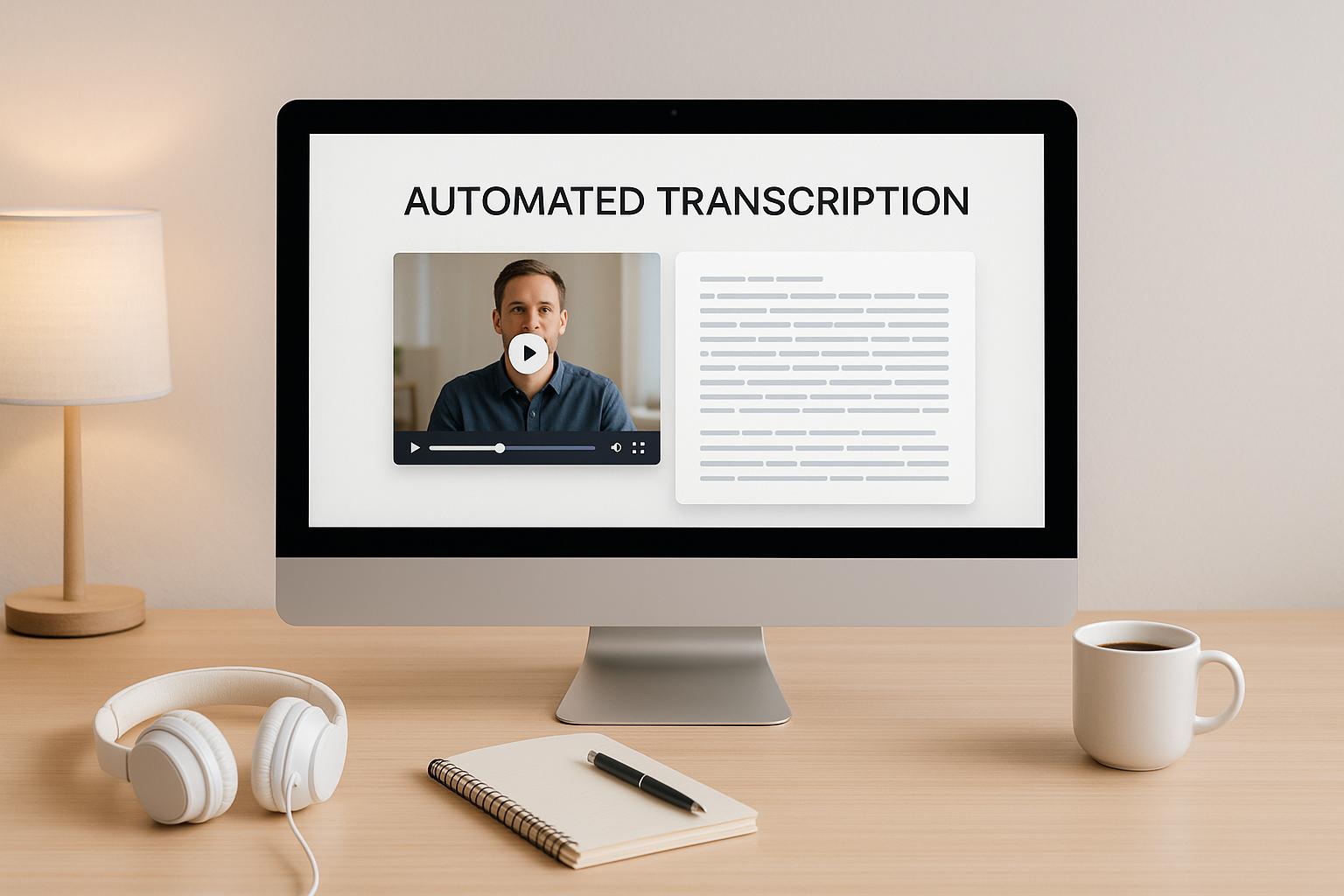
Uploading your video to OpenClip is straightforward, and the platform automatically optimizes your file. Whether you're working with a podcast, webinar, or a YouTube video, OpenClip handles transcription, speaker detection, background noise filtering, and volume normalization - all before the transcription begins.
Always upload the original video file for the best results. Using the source file ensures the highest audio quality, which directly impacts transcription accuracy. AI transcription services can achieve up to 95% accuracy with clear audio, but that number can drop below 85% if the audio includes heavy background noise, overlapping voices, or strong accents. If you're using a compressed format like MP4, aim for an audio bitrate of at least 128 kbps - lower bitrates can introduce distortions that make transcription less reliable.
Once uploaded, OpenClip’s dashboard makes it easy to refine and edit your transcript.
Reviewing Initial Transcriptions with Smart Dashboards
After your video is optimized, OpenClip’s smart dashboard highlights areas with lower confidence scores, helping you focus your attention where it’s needed most. These scores indicate how confident the AI is in both the transcription accuracy and the potential of each clip to perform well on social platforms. This feature saves you from having to comb through an entire 60-minute video - just zero in on the flagged sections.
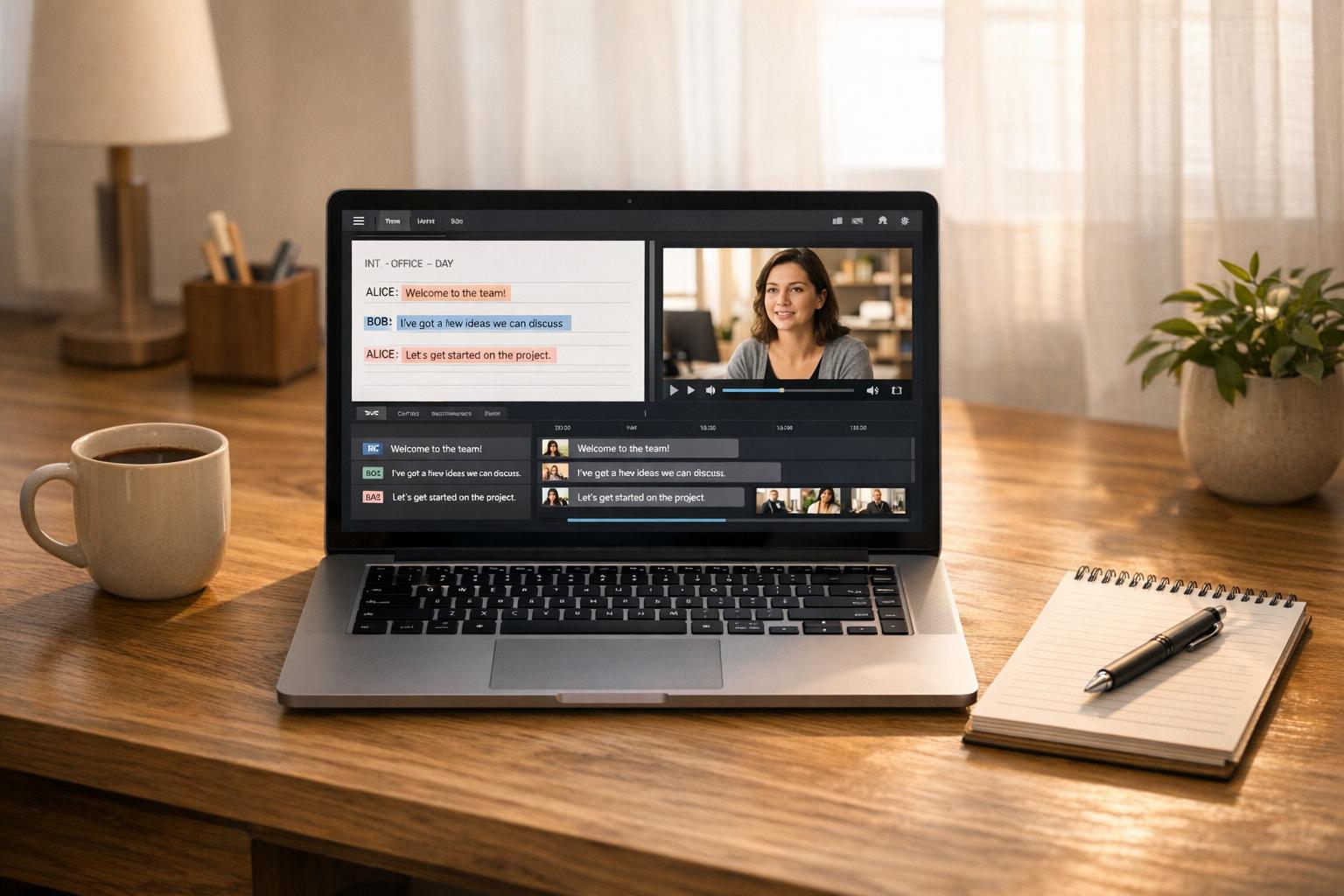
The dashboard also provides a brief explanation for each suggested clip, giving you insight into why the AI found it noteworthy. As you review, the transcript syncs seamlessly with the audio, making it easy to spot common issues like incorrect brand names, misunderstood technical terms, or filler words cluttering the text. OpenClip’s text-based editing tools let you fix these problems directly within the transcript. Simply highlight text to cut it from the video or remove filler words and pauses with a single click. By addressing these issues early, you ensure that every clip you export to platforms like TikTok, Instagram, or LinkedIn is polished and ready to perform.
How to Fix Common Transcription Errors
After your initial review using OpenClip's dashboard, it's time to fine-tune your transcript. While the AI achieves an impressive 99% accuracy rate, occasional slip-ups with specialized names or unique jargon can occur. OpenClip's text-based editing tools make addressing these issues straightforward and efficient.
Finding Errors with Synced Audio Playback
With OpenClip, every word in the transcript is synced to its corresponding audio timestamp. Simply click on a word to jump directly to that point in the recording. This feature makes it easy to verify tricky terms or phrases that might sound similar, ensuring the final transcript is both accurate and clear.
Editing Words, Phrases, and Speaker Labels
Need to tweak a word or phrase? Just click on it, make your changes, and hit "Save." For recurring errors, like consistently misspelled names, the Find and Replace tool is your best friend. You can even apply corrections across the entire project with the "Update All Documents" option. To save time in future uploads, create project-level rules that automatically fix common issues.
Speaker labels are another area where manual adjustments might be needed. While the AI does a solid job, overlapping dialogue in fast-paced settings - like interviews or panel discussions - can confuse the system. Manually refining these labels ensures clarity, especially for platforms like TikTok or Instagram, where clear speaker identification is key.
Removing Fillers, Silences, and Fixing Multi-Language Content
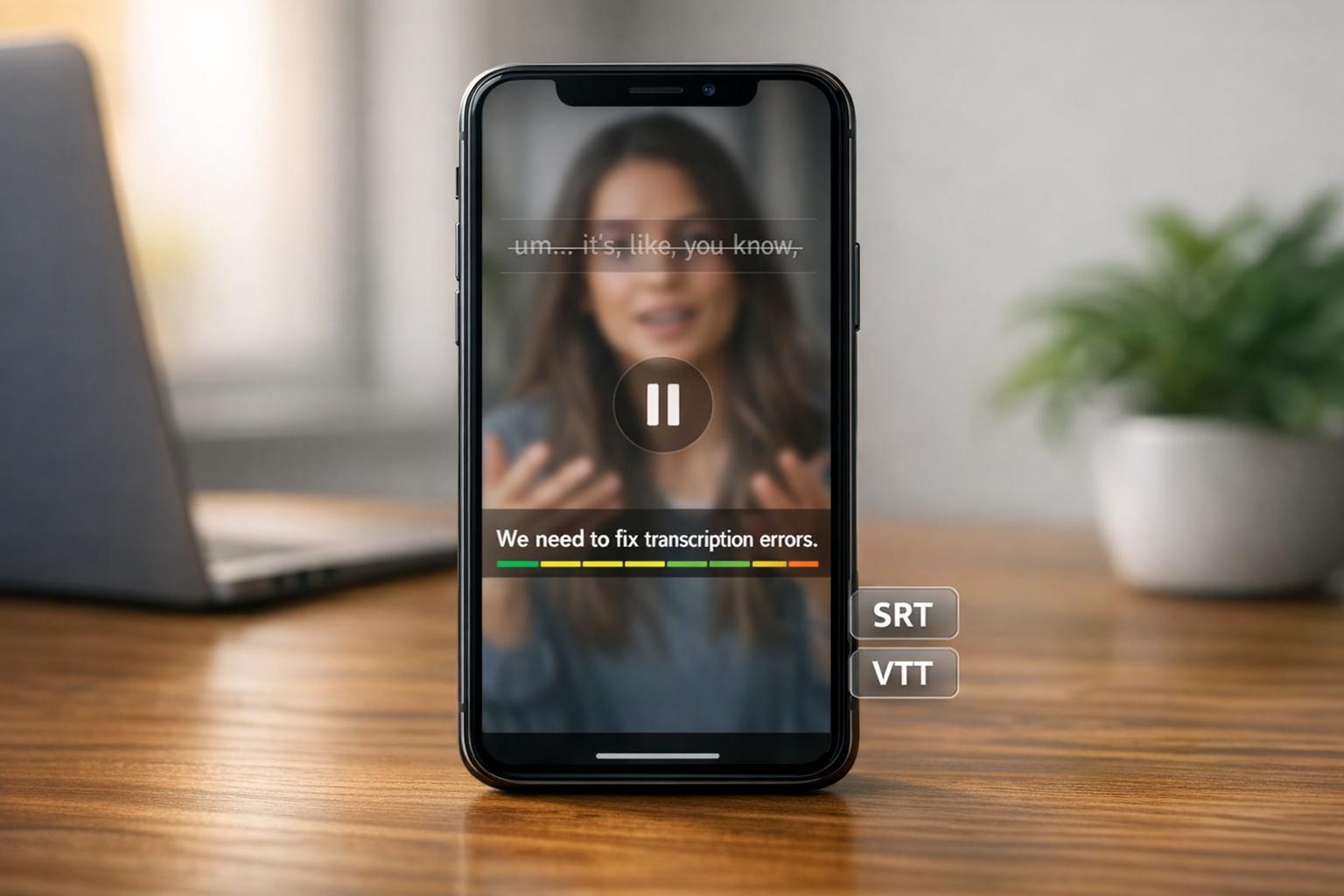
Editing out filler words like "um" and "uh" can be tedious, but OpenClip’s one-click filler removal tool simplifies this process. This feature can cut manual editing time from 90 minutes to just 10. With an accuracy rate of 85–95%, it’s a game-changer. After bulk edits, review the video to ensure the pacing feels natural, and reintroduce brief pauses if needed.
For multilingual content or recordings with strong accents, the AI’s performance may dip below 85%. A quick manual proofread can help catch misheard words, regional phrases, or industry-specific terms. Adding context-specific sounds in brackets - like [audience laughs] or [phone rings] - can also enhance the transcript's clarity, especially for viewers watching on mute. This small touch improves readability and helps content stand out on social media platforms.
Advanced Tools for Improving Transcriptions in OpenClip
Using Confidence Scores and Filler Removal Tools
OpenClip assigns a confidence score to every word in your transcript, giving you a quick snapshot of how accurate the AI believes its transcription is. These scores range from 0 to 1, with lower scores signaling words that may need closer attention. In fact, words with low confidence are 2.64 times more likely to be edited by users. That makes them a great starting point when reviewing your transcript.
"Confidence scores... represent the degree of certainty a model has in its prediction. In Automatic Speech Recognition (ASR), these scores reflect the probability with which a spoken word is recognized correctly." - Korbinian Kuhn, Researcher, Stuttgart Media University
While low-confidence words deserve priority, keep in mind that not every flagged word is incorrect. Current ASR models have precision scores between 0.41 and 0.55, meaning about half of the flagged words are actual errors. The rest could be false positives, so always verify flagged words against the audio to ensure accuracy.
Pairing confidence scores with filler removal tools can make the editing process even smoother. OpenClip's "Edit by Text" feature allows you to instantly delete filler words - like "um" or "uh" - and even removes the corresponding video segments. This combo of targeting low-confidence words and eliminating fillers not only improves transcription quality but also helps create cleaner, more engaging content for social media.
Once you've polished the transcript, the next step is to adapt it for various platforms.
Adjusting Transcripts for Specific Social Media Formats
After refining your transcript, formatting it for specific social media platforms ensures your captions are easy to read and visually appealing. Platforms like TikTok and Instagram Reels often have on-screen elements - such as usernames or buttons - that can block captions. OpenClip's Smart Reframe tool automatically adjusts your footage to a 9:16 vertical format, keeping faces centered and repositioning captions into "safe zones" where they remain visible.
The tool also supports other formats like 1:1 (square) and 16:9 (widescreen), making it easy to repurpose content across different platforms. Each format ensures captions are placed correctly, avoiding issues like cropping or obscured text. Before exporting, you can use OpenClip's one-click cleanup to remove fillers and awkward pauses, giving your content a polished, professional feel.
Exporting and Testing Transcriptions for Social Media
Exporting Transcripts as SRT/VTT Files
Once your transcript is polished, exporting it in the proper format ensures it will work smoothly across social media platforms. The SRT (SubRip) format is the most commonly supported and integrates well with TikTok, Reels, and many other networks. On the other hand, VTT (WebVTT) is primarily used for web-based video players.
Before exporting, double-check that each subtitle block follows the standard format: a sequence number, a timestamp in the HH:MM:SS,MS format, and at least one line of text. Make sure timestamps are sequential and align properly with the video. Clean transcripts - free of filler words - tend to perform better on social media. OpenClip’s editing tools make it easy to export captions that are ready for upload.
Testing Caption Sync Across Platforms
After exporting, it’s important to test your captions to ensure they sync perfectly with your video. Watch the video at several points - beginning, middle, and end - to catch any timing issues that might have slipped through during editing. With over 80% of social media videos being watched without sound, accurate captions are critical. Play the video with the sound off to mimic the viewer’s experience and check for readability.
To fine-tune timing, slow the video down and check each caption block. If a block feels too long or doesn’t match the pacing of the video, split it into smaller sections at natural pauses or the end of a thought. Be on the lookout for caption stutter - repeated words caused by jump cuts - and remove any duplicates that don’t align with the audio.
Use OpenClip’s Smart Reframe preview to make sure captions stay within safe zones where they won’t be obscured by platform interface elements. This tool also ensures that the text is readable and that key visuals, like faces, remain centered. Once everything looks good, move on to a final review with auto-scheduling tools.
Previewing with OpenClip's Auto-Scheduling Tools
After confirming caption sync, preview your videos using OpenClip’s auto-scheduling tools. Their "Approve the lineup" feature lets you see how your captioned clips will appear in different formats. Each clip comes with a confidence score and detailed feedback, making it easy to evaluate caption quality and framing. These real-time previews show exactly how the captions align with speech, allowing for any last-minute tweaks before publishing.
Auto-scheduling tools also adjust caption timing for specific platforms. For instance, TikTok captions should appear on screen for 1–3 seconds, while LinkedIn captions are more effective at 3–5 seconds. Ensuring captions remain visible for at least 1.5 seconds helps prevent flickering and improves readability. Properly timed captions can boost video completion rates by 80% and engagement by 40%.
Finally, test your videos on an actual mobile device to ensure captions are positioned correctly, as desktop previews don’t always match the mobile experience. Once everything is set, batch schedule your videos to maintain a consistent posting schedule - a tactic that algorithms on platforms like TikTok tend to reward.
Conclusion: Improving Social Media Content with Accurate Transcriptions
Accurate transcriptions can transform your social media strategy. With 85% of users watching videos on mute, error-free captions make your content accessible to deaf, hard-of-hearing, and non-native viewers. This accessibility doesn't just help your audience - it also drives results, with videos achieving 40% longer viewing times and 30% higher completion rates.
Transcriptions also improve discoverability. Platforms like TikTok, Instagram, and YouTube index the text in captions, helping your content rank higher in search results. On average, this can lead to a 16% boost in content visibility.
Tools like OpenClip simplify the transcription process. From removing filler words to auto-scheduling posts, these AI-powered solutions save creators over 10 hours each week. Instead of spending time editing, you can shift your focus to creating more content - scaling from just a few clips to over 30 weekly. It’s a game-changer for both productivity and audience engagement.
FAQs
How can I get better caption accuracy before uploading?
To make captions more accurate, take the time to review and correct any mistakes in auto-generated captions. Precision is crucial for boosting both engagement and accessibility. While AI-powered transcription tools can be helpful, they aren’t foolproof - always double-check and adjust captions to align with the spoken content and visuals. Focus on using platforms known for reliable transcription quality, ensuring captions are refined and ready before going live.
What’s the fastest way to find and fix misheard words?
The fastest fix for misheard words in social media videos is using TikTok's auto-captioning tool. Once captions are generated, you can review them and make corrections right in the editing interface before publishing. Another option is to use AI-powered tools like OpenClip, which can handle transcription automatically and offer editable transcripts. These methods help you quickly correct mistakes and ensure your captions are accurate before sharing your content.
How do I keep captions readable on TikTok and Reels?
To make sure captions are easy to read on TikTok and Reels, stick with bold, high-contrast text and position them within the safe zones to prevent overlap with app interface elements. Match the timing of captions with speech or visuals to keep things clear. TikTok also lets you edit on-screen text and auto-generated subtitles before posting - so take a moment to proofread and tweak them for better readability.
Turn one video into a week of content.
Try OpenClip free