By Mees de Beukelaar
Best AI Tools for Social Media Video Visuals
Compare top AI video tools for social media—upscaling, auto color grading, relighting, and repurposing for TikTok, Reels, and Shorts to save editing time.
Originally published March 7, 2026
In this article
If you're looking to create professional-quality social media videos without spending hours on editing, AI tools can simplify the process. These tools handle tasks like color grading, resolution upgrades, and lighting adjustments, helping you produce polished content quickly. Here's a quick rundown of the top options:
- OpenClip: Great for repurposing long videos into TikTok, Instagram Reels, and YouTube Shorts. Offers features like Smart Reframe, auto-scheduling, and caption positioning. Starts at $9/month.
- Topaz Video AI: Best for upscaling videos to 4K or 8K and refining details in low-light footage. Plans start at $25/month.
- CapCut: User-friendly with auto-color grading, resolution tools, and aspect ratio adjustments. Free version available; Pro removes watermarks.
- HitPaw: Ideal for upgrading old footage to 4K, with tools for color adjustments and lighting fixes. Pricing starts at $9.99/week.
- WaveSpeedAI: Cloud-based API for large-scale creators. Offers advanced upscaling, lighting fixes, and frame rate boosts. Pay-per-use starts at $0.05/minute.
These tools save time, improve video quality, and are tailored for modern social platforms. Below is a comparison to help you decide which one fits your needs.
Quick Comparison
Tool Key Feature Pricing Best For OpenClip Smart Reframe, auto-scheduling $9/month (Pro plan) Social media repurposing Topaz Video AI 4K/8K upscaling, low-light fixes $25/month (Personal) High-resolution video upgrades CapCut Auto-color grading, free features Free/Pro available Mobile-first creators HitPaw 4K/8K upscaling, batch processing $9.99/week Restoring older footage WaveSpeedAI Cloud-based, pay-per-use structure $0.05/minute Large-scale content workflowsEach tool has strengths depending on your workflow and goals. Whether you're editing for TikTok, YouTube, or Instagram, these AI tools can streamline your process and elevate your video quality.
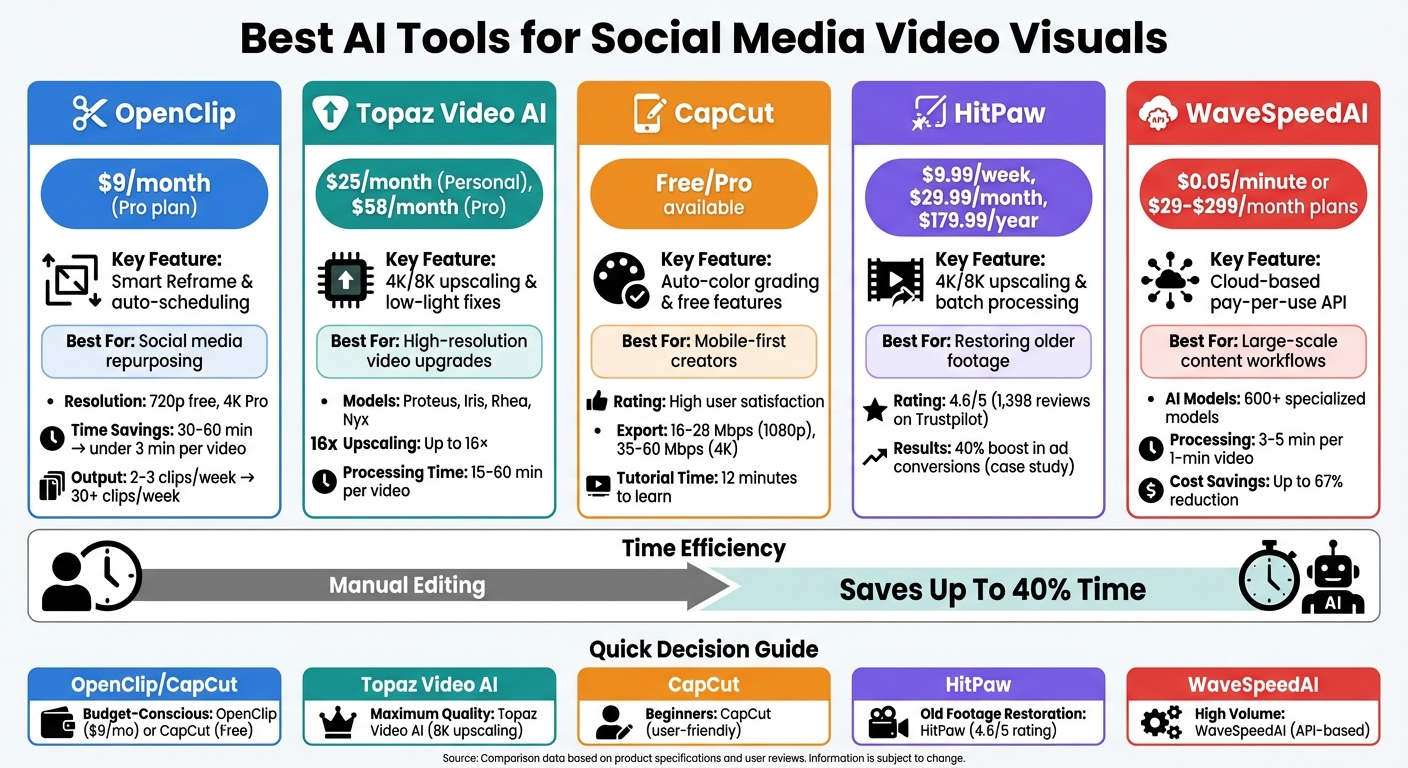
AI Video Tools Comparison: Features, Pricing, and Best Use Cases
1. OpenClip
Resolution Options
OpenClip tackles resolution issues head-on, offering 720p exports for free users and 4K resolution for Pro subscribers. This ensures your videos look sharp and professional, no matter the platform.
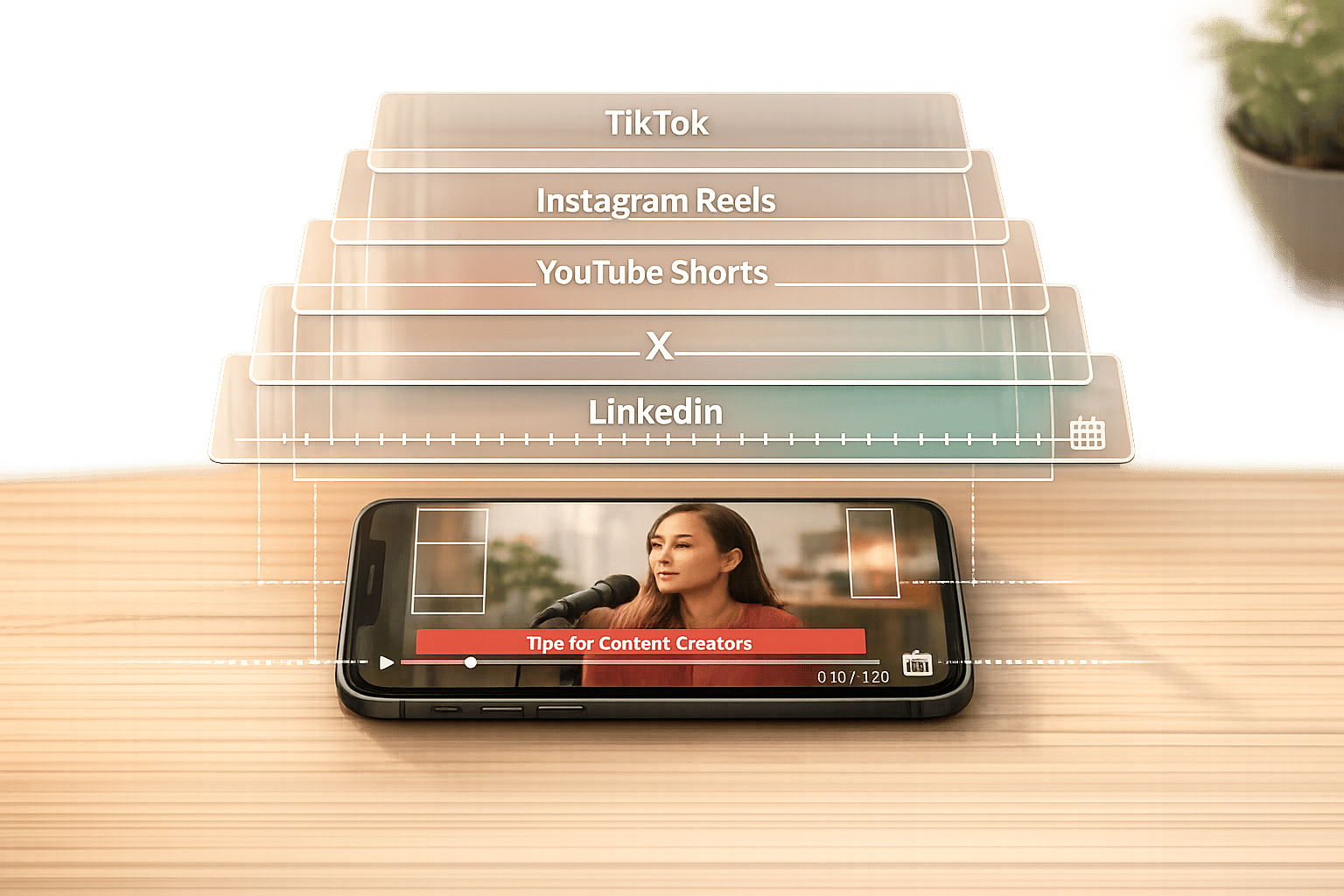
Its Smart Reframe feature is a game-changer. Using AI face tracking, it automatically adjusts footage into formats like 9:16 (vertical), 1:1 (square), and 16:9 (widescreen). This keeps speakers centered during aspect ratio adjustments, so you don’t have to mess with manual keyframing. Plus, it smartly positions captions and visuals to avoid overlapping with platform UI elements, like profile icons or buttons. OpenClip simplifies the workflow by prepping your videos for all major social platforms.
Tailored for Social Media
OpenClip’s AI takes long-form content and transforms it into clips designed specifically for platforms like TikTok, Instagram Reels, YouTube Shorts, X, and LinkedIn. According to their data, creators can go from producing 2–3 clips a week to over 30, while cutting editing time from 30–60 minutes per video to under 3 minutes.
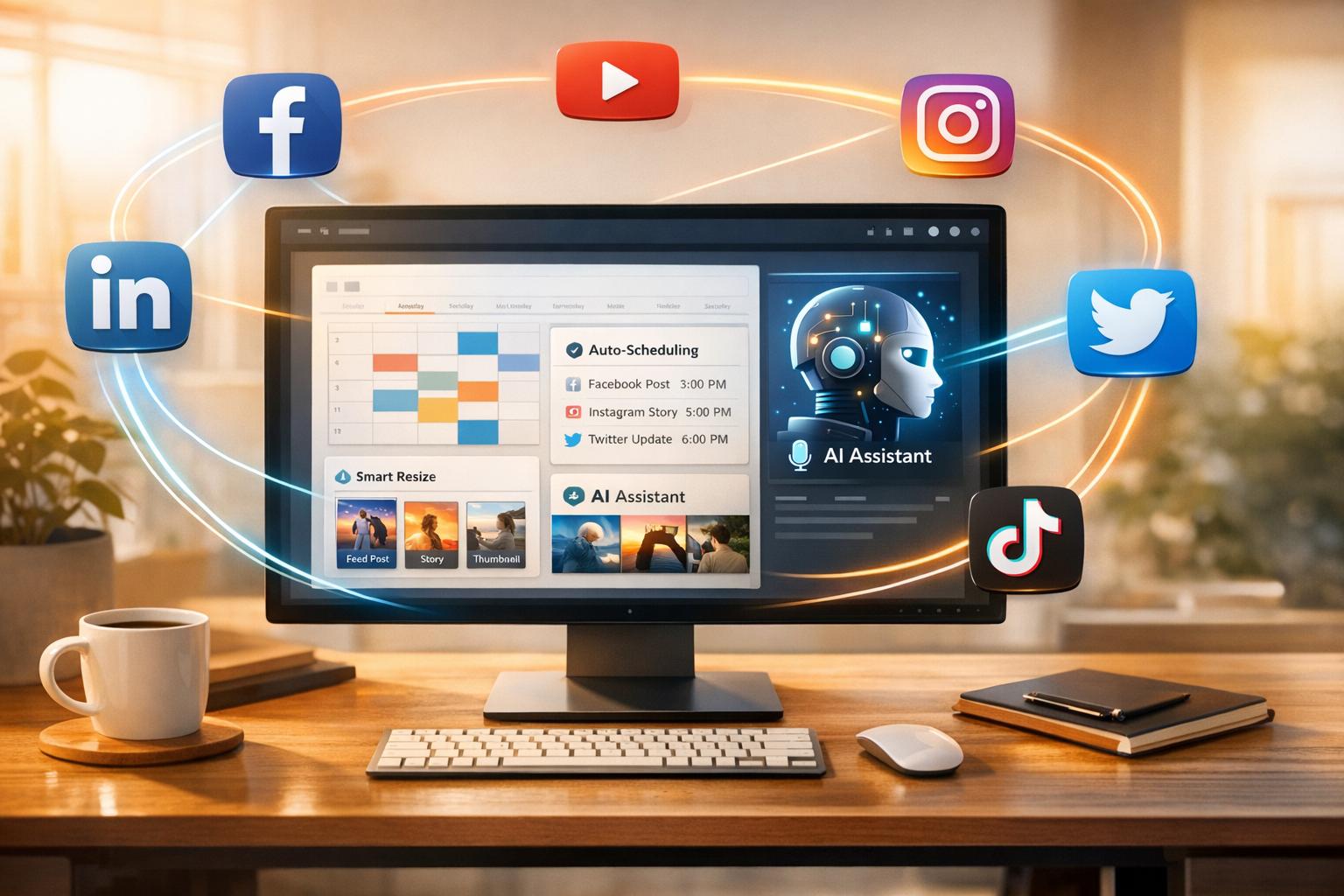
The platform also offers auto-scheduling, making it easy to queue posts across your profiles. For those juggling multiple brands, the Pro plan supports up to 3 brand profiles, while the Business plan allows for unlimited profiles and includes team collaboration tools. And with its built-in captioning tool, your text stays readable across different social media layouts.
2. Topaz Video AI
Resolution Enhancement
Topaz Video AI is designed to upscale footage to 4K and even 8K using a variety of specialized AI models. For general improvements, the Proteus model is your go-to. If your focus is on preserving intricate details like facial features, Iris is the best choice. Meanwhile, Rhea excels at delivering high-quality upscaling results. The software can handle image upscaling up to an impressive 16×.
The "Project Starlight" series adds another layer of innovation by using diffusion technology to ensure fluid, natural motion between frames. This means even low-quality footage can be transformed into sharp, professional-grade videos that grab attention. Alongside its upscaling capabilities, Topaz Video AI also optimizes lighting to reveal finer scene details.
Lighting Adjustments
Topaz Video AI goes beyond resolution improvements by refining lighting, making it especially useful for videos shot in tough conditions. For example, the Nyx model is tailored for denoising low-light, high-resolution footage, ensuring that details remain intact. In scenes with deep shadows or high contrast, models like Dione TV and Dione Dehalo enhance clarity by lifting shadows and reducing halos.
"The sun had already set and it was almost too dark. With some editing adjustments and denoise with @topazlabs, I was able to save the image."
– Julia Cook, Wildlife Photographer
The software also includes an SDR-to-HDR conversion model, which expands the dynamic range to make colors and lighting more vibrant - perfect for showcasing content on high-end smartphone displays. This feature is particularly valuable for creators on platforms like TikTok and Instagram. A handy tip: upscale your social media videos to 4K before uploading, even if the platform reduces the resolution. This approach gives compression algorithms more data, resulting in a cleaner, sharper final video. These lighting refinements ensure your content looks polished and professional, regardless of where it’s viewed.
Social Media Optimization
Topaz Video AI doesn’t stop at image quality; it also caters to the specific demands of social media platforms. Its Output Resolution menu allows you to export videos in custom dimensions, including vertical 9:16 formats, making it ideal for TikTok and Instagram. Trusted by major players like HBO Docs for restoring visuals in high-profile documentaries, the software has earned its place among the top tools for video enhancement.
Pricing is straightforward: the Personal Plan costs $25/month (billed annually at $299), while the Pro Plan - which includes full commercial usage - runs $58/month (billed annually at $699). Whether you’re a solo creator or part of a professional team, Topaz Video AI offers features that can elevate your content to the next level.
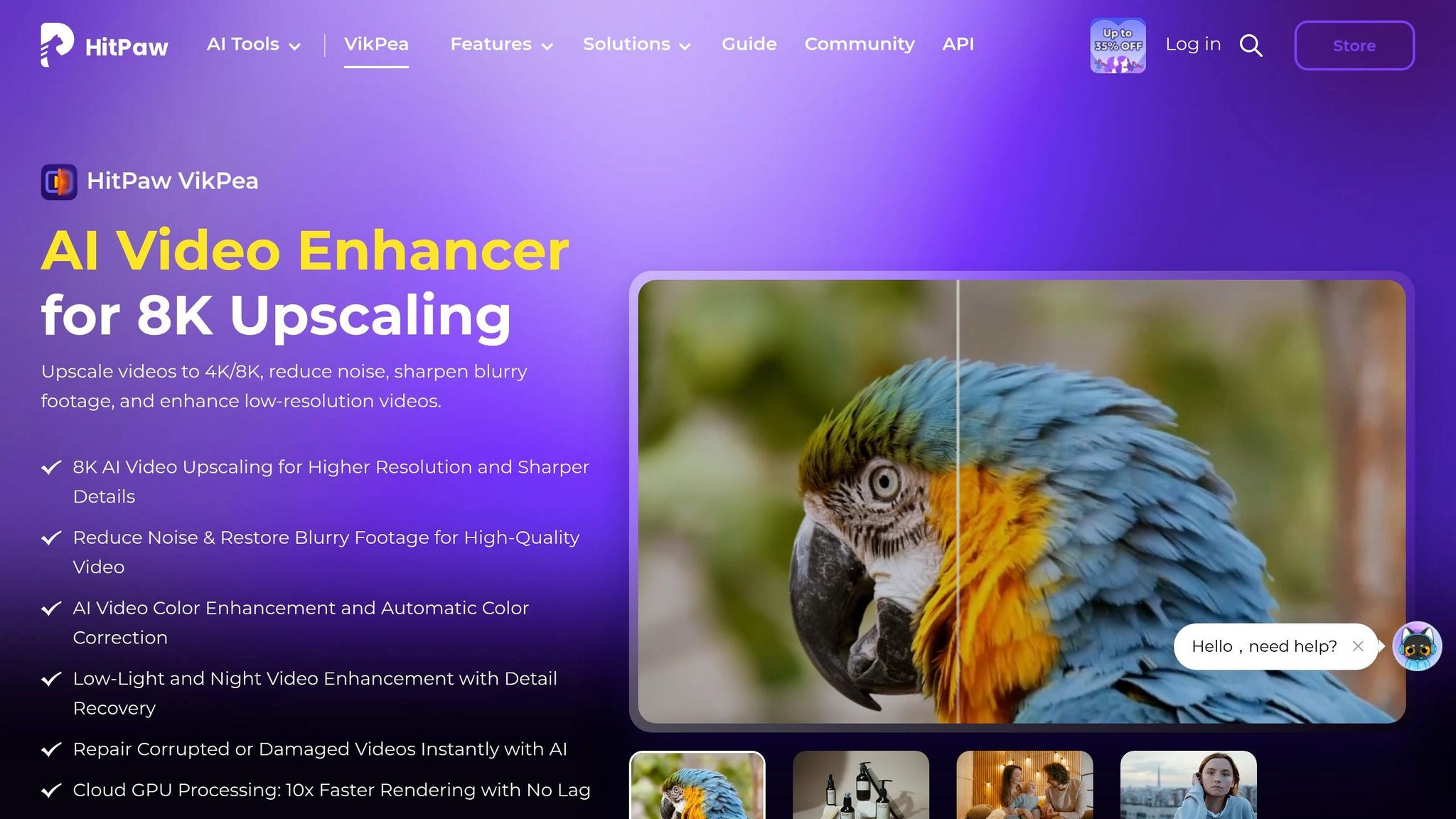
HitPaw Video Enhancer Tutorial (Enhance Video Quality With HitPaw AI!)
3. CapCut
CapCut combines advanced resolution tools and lighting features with AI-powered editing to make creating social media content faster and easier.
Auto-Color Grading
CapCut's automated color grading tool analyzes your footage and adjusts color, contrast, and brightness automatically. This saves hours of manual editing while giving your videos a polished, professional look. It’s especially useful for maintaining consistent visuals across multiple clips - perfect for platforms like Instagram and TikTok, where cohesive branding is key. Want more control? You can fine-tune settings like temperature, hue, and saturation using manual sliders. Plus, the "Apply all" feature lets you apply these adjustments across multiple clips at once, making it a time-saver for creators managing high volumes of content .
Resolution Enhancement
CapCut's upscaling engine doesn't just stretch your footage - it predicts and fills in missing pixels while sharpening edges for a cleaner, more detailed image . This means you can upgrade videos from 720p to 1080p or even 4K and 8K without losing quality . For best results, use the "Enhance quality" feature before color grading to avoid amplifying any noise in your footage. Whether you're working with heavily compressed files or aiming for ultra-sharp 4K visuals, these tools help keep your audience engaged with crisp, attention-grabbing content.
"AI video enhancers use trained models to predict missing information and repair flawed pixels, turning soft, noisy, or compressed footage into cleaner, more detailed visuals." - CapCut
Lighting Adjustments
The AI Relight tool in CapCut adds virtual lighting to brighten poorly lit scenes or fix overexposed footage. Paired with manual controls for exposure, brightness, and contrast, this feature ensures your videos look polished, even in less-than-ideal lighting conditions . This is particularly helpful for indoor vloggers dealing with inconsistent natural light, making it easier to maintain a professional look that keeps viewers engaged.
Social Media Optimization
CapCut's Auto Reframe feature automatically adjusts your video to fit the 9:16 aspect ratio, perfect for TikTok and Instagram Reels . The app also includes export presets tailored for different platforms, allowing you to upload directly to TikTok, YouTube, Instagram, or Facebook. For optimal quality, aim for 16–28 Mbps when exporting 1080p videos and 35–60 Mbps for 4K. While the free version offers essential tools like AI upscaling and relighting, upgrading to the Pro version removes watermarks and unlocks more advanced features. With a quick 12-minute color grading tutorial, you can achieve professional-quality results in no time.
sbb-itb-5598afd4. HitPaw
HitPaw brings a powerful set of AI tools designed to improve visual clarity and make your content shine on social media. Like other tools in this space, it focuses on enhancing video quality while ensuring compatibility with today’s fast-moving social platforms. With a Trustpilot rating of 4.6/5 based on 1,398 reviews, users frequently highlight its ability to transform older footage into video that looks like it was shot on cutting-edge 4K equipment.
Resolution Enhancement
HitPaw uses AI-driven upscaling to analyze video frames and add missing details, letting you upgrade 720p clips to stunning 4K or even 8K resolution. It offers specialized models tailored for portraits, animations, and landscapes, ensuring optimized results for different types of footage. You can preview a short 3–10 second segment to see the enhancements before committing to a full export.
Auto-Color Grading
This tool simplifies color adjustments with four specialized models that enhance saturation, convert SDR to HDR, colorize black-and-white videos, and bring out details in low-light scenes. Real-time previews make it easy to test and tweak adjustments before finalizing your video.
Lighting Adjustments
HitPaw’s Low-light Enhancement Model brightens dark footage, reduces noise, and fixes color imbalances. For example, UrbanThreadsCo, an e-commerce brand, reported a 40% boost in ad conversions after using the tool to restore texture and vibrancy to product videos originally shot on a mobile phone with flat colors. Portrait photographer LenaWilde_Visuals shared her experience:
"Your AI video enhancer saved a sunset shoot where the client's face was underexposed. By using the Portrait Model, I restored the skin textures without adding plastic-looking artifacts".
Additionally, the Exposure slider during SDR-to-HDR processing allows for precise brightness adjustments.
Social Media Optimization
HitPaw goes beyond visual improvements by tailoring content specifically for social media platforms. It automatically resizes videos to fit platform-specific aspect ratios, provides background templates for TikTok, and compresses files without sacrificing quality. Batch processing makes it easy to handle multiple clips at once for larger campaigns.
Pricing starts at $9.99 per week, $29.99 per month, or $179.99 annually, with a free trial available that includes watermarked exports. Whether you’re enhancing a single video or working on a batch, HitPaw ensures your content is polished and ready for any platform.
5. WaveSpeedAI
WaveSpeedAI brings a cloud-based API to the table, designed specifically for creators managing large-scale social media content. By offering AI-driven enhancements through the cloud, it eliminates the need for expensive hardware. With access to over 600 specialized AI models, it uses a pay-per-use structure starting at $0.05 per minute of video, alongside monthly plans ranging from $29 for 100 minutes to $299 for 2,000 minutes [50, 51, 54].
Resolution Enhancement
WaveSpeedAI utilizes cutting-edge AI models like Real-ESRGAN Video, FlashVSR, SeedVR2, and the ByteDance Video Upscaler to upscale videos by up to 8× their original resolution. These models excel at recreating fine details - think realistic hair textures, fabric patterns, or intricate foliage - transforming low-resolution clips (480p or 720p) into sharp, high-quality 4K content. Upscaling a 1-minute video typically takes 3–5 minutes using cloud-based GPUs. Additionally, the platform features a Video Outpainter tool that adjusts video aspect ratios by expanding boundaries, such as converting horizontal footage into vertical formats without cropping [48, 49, 52]. This robust upscaling system also incorporates automated color grading for professional-quality results.
Auto-Color Grading
WaveSpeedAI's machine learning models are trained on expertly graded footage, allowing them to automatically balance colors, fine-tune exposure, and enhance dynamic range. By setting the "color_correction" parameter to "auto" in the API, users can instantly apply cinematic color adjustments, ensuring their content maintains a polished and cohesive look. Beyond color, the platform enhances lighting details to elevate the overall visual appeal.
Lighting Adjustments
The Low-Light Cleanup tool is designed to rescue footage shot in dimly lit environments, such as concerts or nighttime events. It removes grain, sensor noise, and compression artifacts, turning grainy smartphone videos into clean, polished 4K clips. WaveSpeedAI's CodeFormer technology goes a step further by detecting and reconstructing facial features in blurry group shots, even restoring faces as small as 32×32 pixels. In 2026, Junyu Huang, COO of Novita AI, highlighted the platform's impact:
"WaveSpeedAI has significantly improved our inference efficiency and helped us cut video generation costs by up to 67%".
Social Media Optimization
Designed with content creators in mind, WaveSpeedAI's Social Media Optimization pipeline combines stabilization, mobile footage upscaling, and face enhancement into a single streamlined workflow. Its technologies, such as RIFE and DAIN, can boost frame rates from 30fps to 60fps or even 120fps, enabling smooth slow-motion effects perfect for sports or cinematic clips. The platform supports major video formats like MP4, MOV, AVI, and MKV while ensuring the original audio remains intact.
Pros and Cons
When it comes to video editing tools, each option brings its own strengths and trade-offs, often influenced by your workflow needs and budget.
OpenClip stands out for automating tasks like video repurposing and auto-color correction, which adjusts brightness, contrast, and color specifically for social media platforms. Its pricing starts at just $9/month for the Pro plan, making it an affordable choice for many creators.
Topaz Video AI takes the lead in resolution upscaling, delivering results up to 8K with advanced denoising capabilities. However, it lacks creative color grading features and demands significant local processing power - processing times can range from 15 to 60 minutes per video, depending on complexity.
CapCut is celebrated for its accessibility, offering one-click AI color correction and a wide range of filters tailored for platforms like TikTok and Instagram. It's particularly noted for its effective skin tone correction, making it a favorite for beauty and lifestyle content creators.
A key consideration is the balance between speed and precision. AI tools can cut editing time by up to 40%, delivering quality that closely rivals manual editing. This efficiency is a game-changer for creators juggling daily multi-platform schedules.
That said, many editors combine AI-driven enhancements with manual adjustments to maintain artistic control. Using a calibrated monitor remains essential to ensure the AI's color corrections look accurate across different devices.
Conclusion
When selecting an AI tool, focus on your workflow needs and platform goals. OpenClip is a standout choice for transforming long-form videos into platform-ready clips. Its automated color and contrast adjustments make it ideal for quick optimization tailored to TikTok, Reels, and Shorts.
If resolution is your top priority, Topaz Video AI is perfect for upscaling footage to 4K or 8K, a key factor for YouTube's preference for high-resolution content.
For mobile-first creators, CapCut offers an easy-to-use solution with professional features like color grading and skin tone correction. Its free tier includes all the basics you need to get started.
These tools cater to different needs, allowing creators to seamlessly integrate AI into their workflows. Many professionals now combine tools - using one for content generation, another for upscaling with Topaz Video AI, and finishing touches in DaVinci Resolve - to produce broadcast-quality results.
Whether you’re managing high-volume production or working on visually demanding projects, choosing the right AI tool can simplify your process while delivering professional-quality visuals across social platforms.
FAQs
Which AI tool fits my workflow best?
When it comes to finding the right AI tool for social media videos, it all boils down to your specific needs. For tasks like transcription, clip creation, and scheduling across multiple platforms, OpenClip is a great option to simplify the workflow. On the other hand, if your focus is on quick color grading or resizing videos to fit various platform requirements, there are tools designed specifically to refine visuals and formats. Think about whether your priority lies in automating workflows, improving video quality, or adapting content for different platforms to choose the best tool for your production process.
Will AI upscaling make my videos look fake?
AI upscaling has made impressive strides, improving resolution, clarity, and detail in images and videos. Whether the results look "fake" often depends on the quality of the technology and how it's used. If the process is poorly executed or the enhancements are pushed too far, it can lead to artifacts or an unnatural, overly smooth appearance. On the other hand, when done properly with advanced models, AI upscaling can deliver realistic outcomes that closely mimic native high-resolution content, maintaining natural textures and fine details.
Do I need a powerful computer to use these tools?
When creating social media video visuals using AI tools, having the right computer setup can make a big difference - especially for high-resolution videos or tasks that require real-time processing. For optimal performance, a dedicated GPU with 4–6GB of VRAM (like the NVIDIA GTX 900 series or newer) is highly recommended. Pair that with 16GB or more of RAM and a fast processor to handle demanding workloads smoothly.
While some AI tools can function with integrated graphics, relying on dedicated hardware ensures better results for professional or intensive projects. If you're serious about creating high-quality content, investing in a capable machine is worth considering.
Turn one video into a week of content.
Try OpenClip free