By Mees de Beukelaar
Text-Based Editing for TikTok and Reels
Text overlays and captions for TikTok and Reels boost watch time, accessibility, retention, and conversions—AI tools speed up captioning and publishing.
Originally published January 21, 2026
In this article
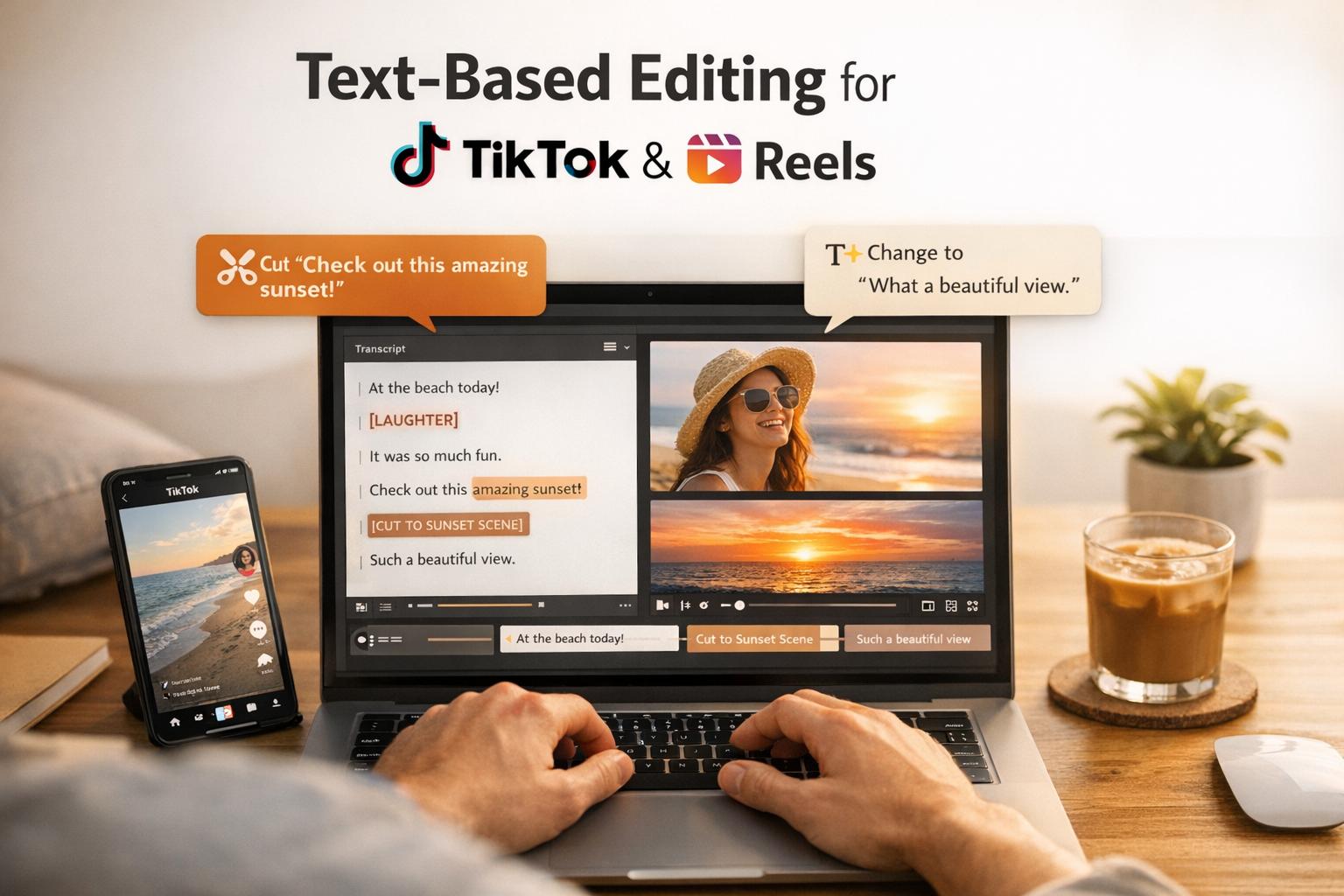
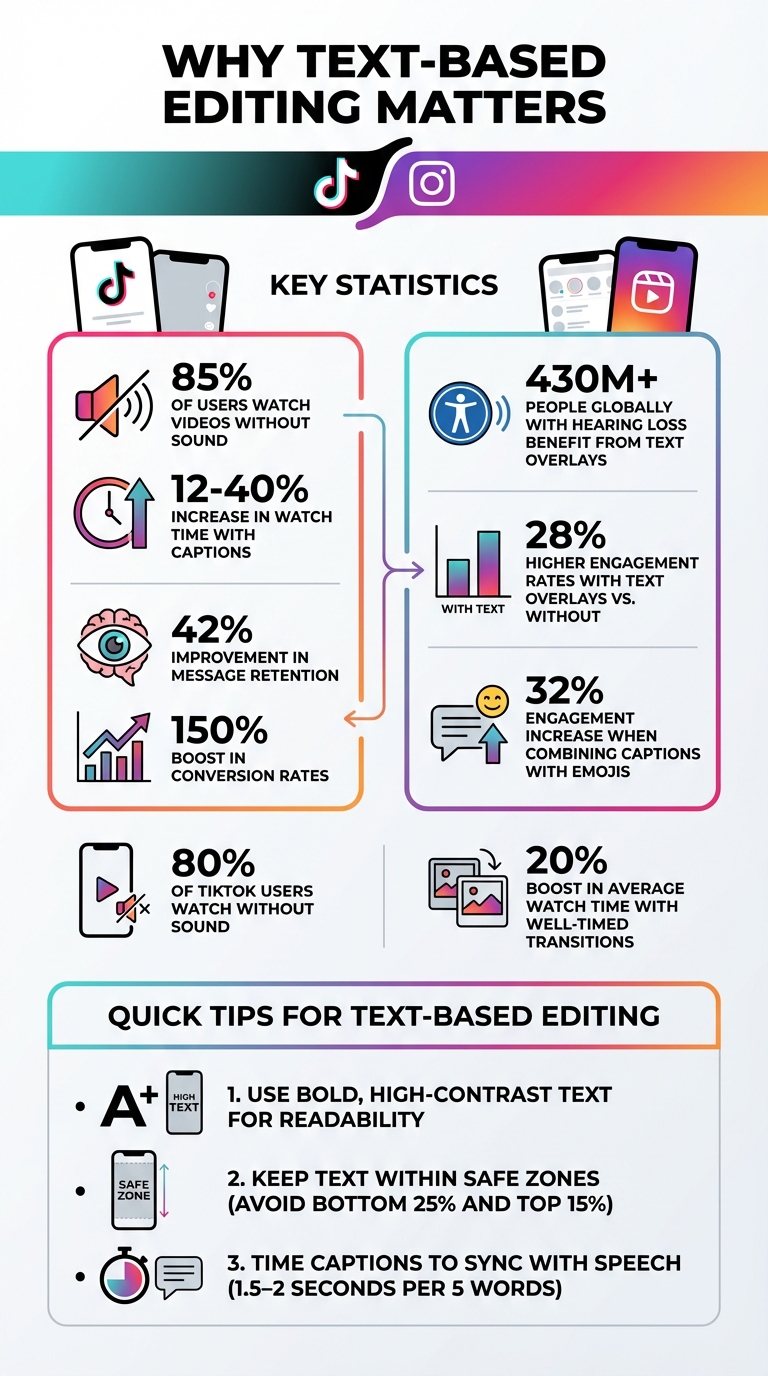
Text-based editing is now essential for TikTok and Instagram Reels. Why? Over 85% of users watch videos without sound, so captions and text overlays aren’t just helpful - they’re critical for engagement. Videos with captions can boost watch time by 12% to 40%, increase message retention by 42%, and even drive conversion rates up by 150%. Platforms also use on-screen text to categorize content, helping it reach the right audience.
Here’s what you need to know:
- Text overlays improve accessibility for the 430M+ people with hearing loss globally.
- Algorithms reward engagement metrics, like higher retention and interaction, which text overlays help achieve.
- Native tools on TikTok and Reels are great for quick edits, but third-party apps like CapCut or Adobe Premiere Pro offer advanced options like word-by-word animations.
To get the most out of text-based editing:
- Use bold, high-contrast text for readability.
- Keep text within safe zones to avoid interface overlap.
- Time captions to sync with speech or visuals for clarity.
For creators managing multiple platforms, AI tools like OpenClip automate captioning, timing, and formatting, saving hours of manual work. Whether you’re adding call-to-actions or syncing text with visuals, mastering text overlays is key to turning silent viewers into engaged followers.
Text-Based Editing Impact Statistics for TikTok and Instagram Reels
How to Add TEXT to your TIKTOK Videos | 4 DIFFERENT METHODS
Setting Up Text Overlays
Making the most of text overlays is key to turning silent views into meaningful engagement - building on the importance we touched on earlier.
Accessing Text Features in TikTok and Reels
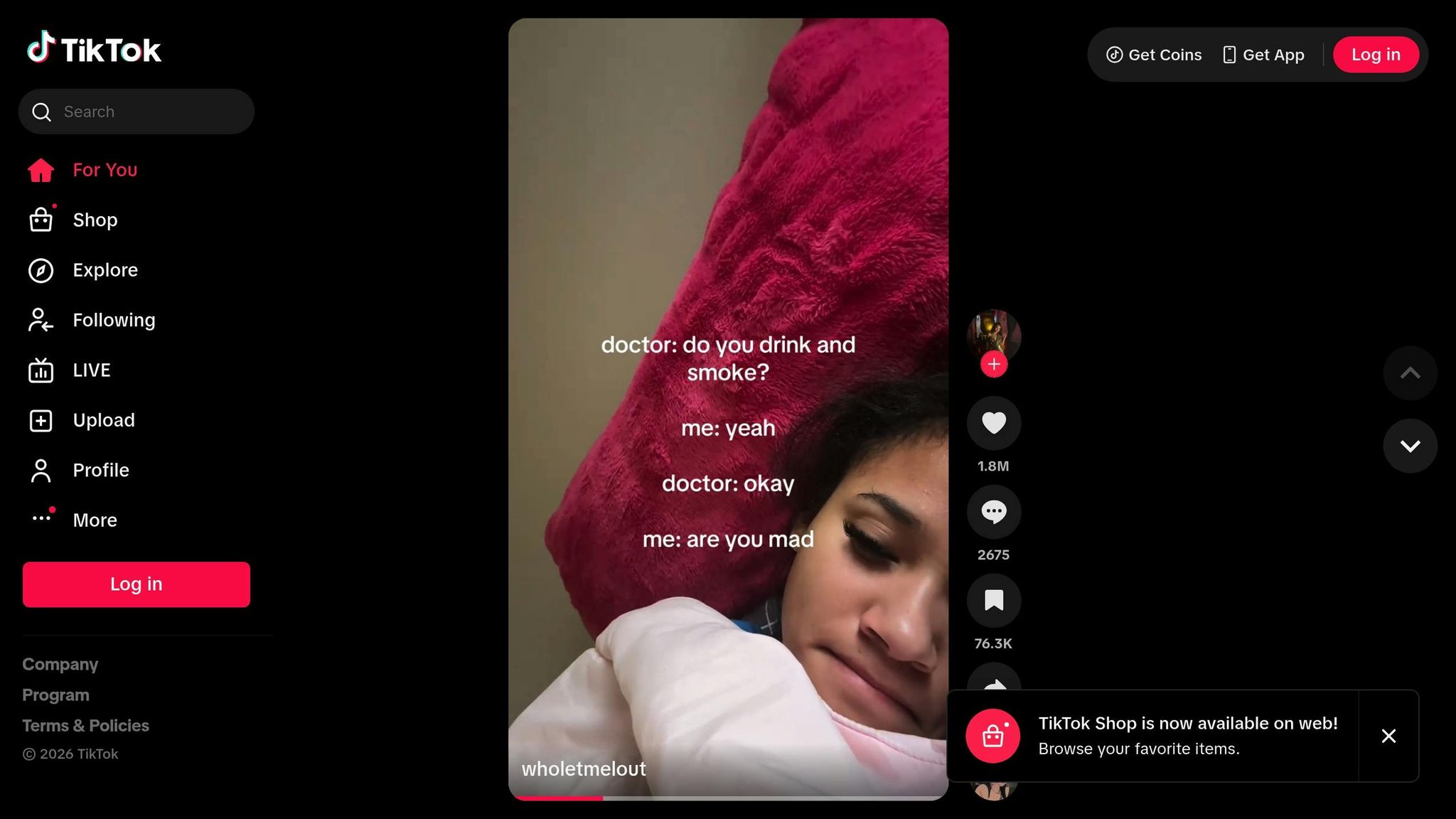
Once you've recorded or uploaded your video, tap Next on TikTok or the equivalent button on Reels to open the editing suite. From there, hit the "Aa" (TikTok) or "AA" (Reels) icon to access the text editor. TikTok places these tools on the right sidebar, while Instagram positions them at the top of the screen.
In the text editor, you can immediately start typing and tweaking your message. Take a moment to customize your overlays so they align with the overall tone of your video.
Customizing Fonts, Colors, and Sizes
Both TikTok and Reels offer a variety of font styles to match different vibes - from classic serif fonts for a polished look to modern options ideal for lifestyle content. Experiment with the available fonts until you find one that fits your video's mood.
For colors and backgrounds, both platforms provide tools to enhance readability. TikTok’s background feature is accessible via the "A" icon, while Instagram has a background toggle. These options let you add solid or semi-transparent boxes behind your text, helping it stand out against busy visuals. You can even adjust the opacity for a subtler effect.
Resizing, rotating, and repositioning text is as simple as using intuitive gestures. Just make sure your text stays within the "safe zones" to avoid being obscured by interface elements like the "Like" button or captions.
"TikTok's text overlay capabilities transform ordinary videos into powerful business communications that drive real results." - Keith Kakadia, Founder, Sociallyin
To maintain brand consistency, consider creating a simple style guide with your preferred fonts and hex color codes. Since TikTok doesn’t currently let you save text presets, having these details on hand ensures your videos always look polished. Also, aim for a color contrast ratio of at least 4.5:1 between your text and the background, and keep your overlays concise - one to two lines max - so viewers can easily digest your message.
With your text styled just right, the next step is to focus on timing each overlay for maximum impact. These setup steps pave the way for the advanced synchronization techniques covered in the following section.
Timing and Synchronization of Text Overlays
Once you've polished your text style, getting the timing just right is what takes your video from good to great. Properly timed overlays can make your content feel seamless, while poorly aligned captions can throw off your flow and confuse viewers.
Adjusting Text Timing and Duration
Platforms like TikTok and Reels allow you to manually control text timing. Simply tap on the text element, choose "Edit," and then select "Duration". From there, you can use a sliding scale to determine when your text appears and disappears. A good rule of thumb is to aim for 1.5–2 seconds for every 5 words. For better readability, break your text into chunks of 3–7 words, keeping each segment on screen for 1–3 seconds. Align these breaks with natural pauses in your video.
Advanced Techniques for Syncing Text with Video
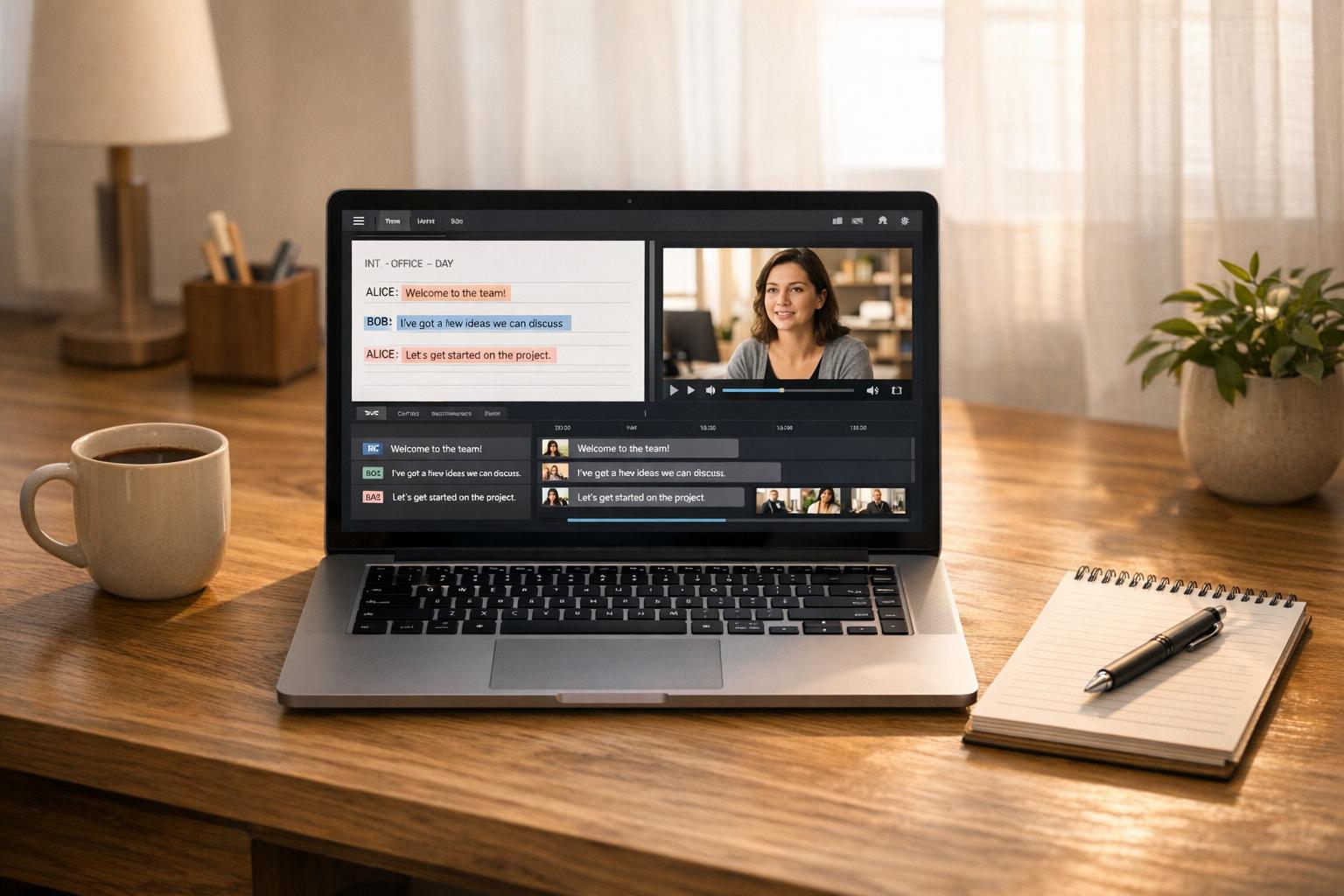
For fast-paced videos, AI tools like OpenClip can save you time. These tools can edit transcripts and automatically adjust text timing, delivering a sync accuracy of over 95%. By editing the transcript, you can ensure captions are perfectly timed without the hassle of manually adjusting sliders.
Word-by-word animations are another great option for rapid speech. Highlighting or changing the color of individual words as they’re spoken adds a dynamic touch. The pacing of your captions should match your content’s energy - quick transitions work best for high-energy videos, while slower, steady captions suit educational or instructional content.
"Subtitle timing is where amateur content reveals itself most clearly. Captions that appear too early spoil the punchline or create confusion." - OpenClip
For action-heavy content like cooking tutorials or workout demonstrations, sync your text with specific visual cues. For instance, display an ingredient name the moment it appears on screen or show an exercise name as the movement starts. This kind of coordination can improve message retention by up to 40%. Matching your text to the rhythm of your video not only enhances clarity but also boosts engagement - a win-win for your content.
sbb-itb-5598afdIncreasing Engagement with Text-Based Editing
Text overlays are more than just a visual addition - they're a powerful way to boost viewer interaction. They pair well with precise timing strategies, grabbing the attention of users who watch videos without sound (which is about 80% of viewers in some scenarios). In fact, adding text overlays can increase engagement rates by up to 28% compared to videos that skip this feature.
Let’s dive into how clear calls-to-action (CTAs) and emotionally engaging captions can take your video content to the next level.
Using Call-to-Actions (CTAs) Effectively
A well-placed CTA can make a huge difference in how your video performs. Videos with direct CTAs see 150% higher conversion rates compared to those without . To keep things simple and effective, stick to one clear action per video - too many can confuse your audience .
Use strong, action-focused language that tells viewers exactly what to do. For example, phrases like "Save this for later", "Follow for part 2", or "Comment your favorite technique" are much more effective than vague instructions. Timing is everything - place your CTA during moments of peak engagement or at the end of your video, when viewers are already invested .
Tailor your CTAs to the platform. On Instagram Reels, prioritize "Save & Share" prompts since the algorithm favors those actions. On TikTok, "Follow & Engage" tends to perform better.
Make CTAs visually pop with bold, high-contrast colors. For example, white text outlined in black ensures readability across all devices . Avoid placing text in the bottom 20% of your screen, where TikTok’s interface might obscure it . You can also create urgency with phrases like "Limited time" to tap into FOMO and encourage quick action .
But CTAs aren’t the only way to connect with your audience - captions and emojis can add a personal and emotional touch.
Adding Captions and Emojis for Emotional Appeal
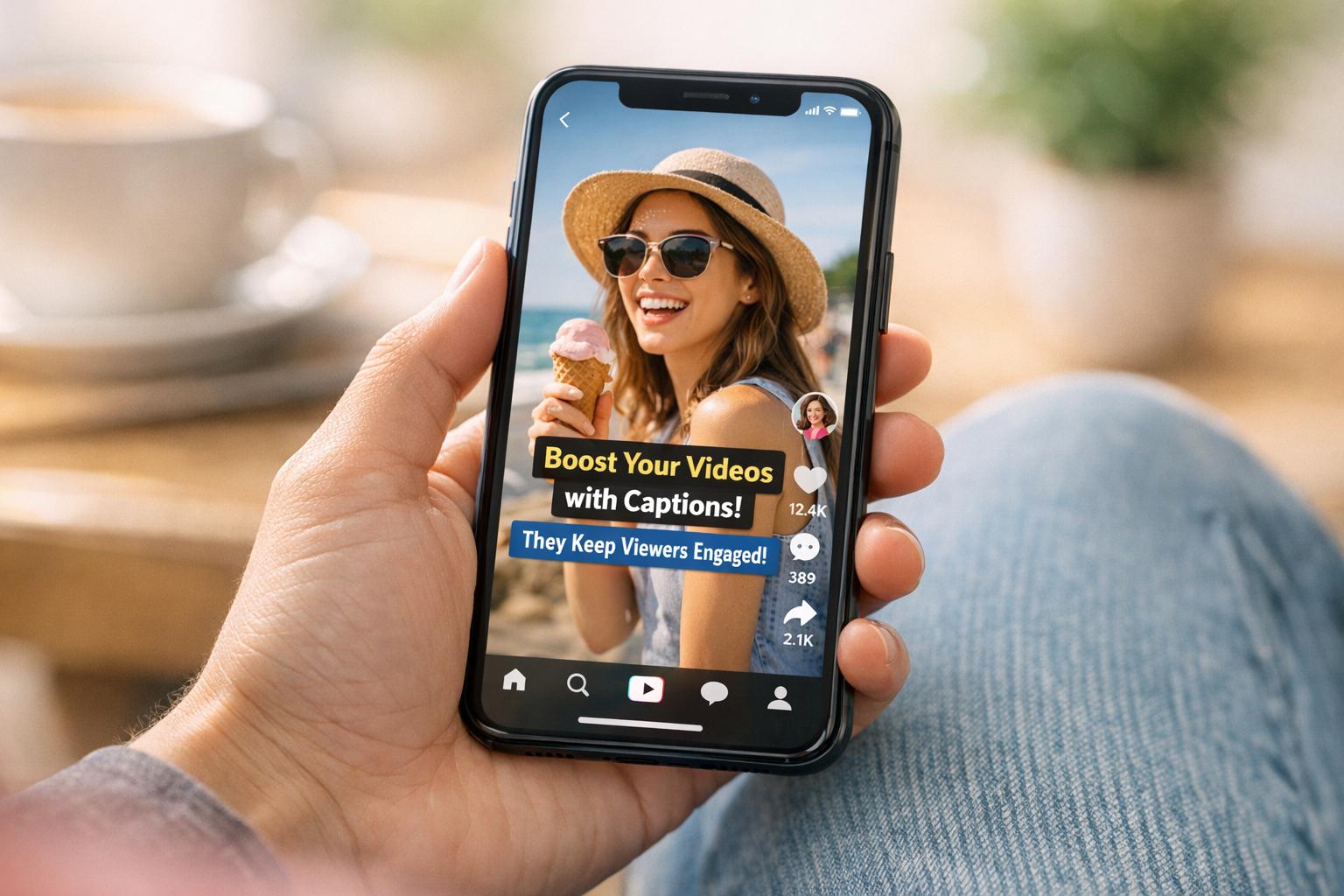
Captions don’t just make your videos more accessible; they also increase watch time. On average, videos with captions see a 12% to 40% boost in viewing duration. Pairing captions with emojis or stickers can elevate engagement even further, with rates climbing by 32%.
"Emojis and symbols are your secret weapons for adding flair and personality to your captions." - Cliff Weitzman, CEO/Founder of Speechify
Emojis, when used thoughtfully, bring a sense of warmth and relatability to your content. A simple heart, thumbs-up, or smiley face can convey emotions that words sometimes can’t. Keep your captions concise - aim for 3 to 7 words displayed for 1 to 3 seconds each. This keeps them easy to read without pulling focus from your visuals.
Your font choice also plays a role in setting the tone. For example, a calming font works well for wellness content, while bold, trendy fonts are a better fit for fashion videos. To guide viewers’ attention, emphasize key words by changing their color, size, or weight. This visual hierarchy ensures that critical moments or emotional highlights stand out.
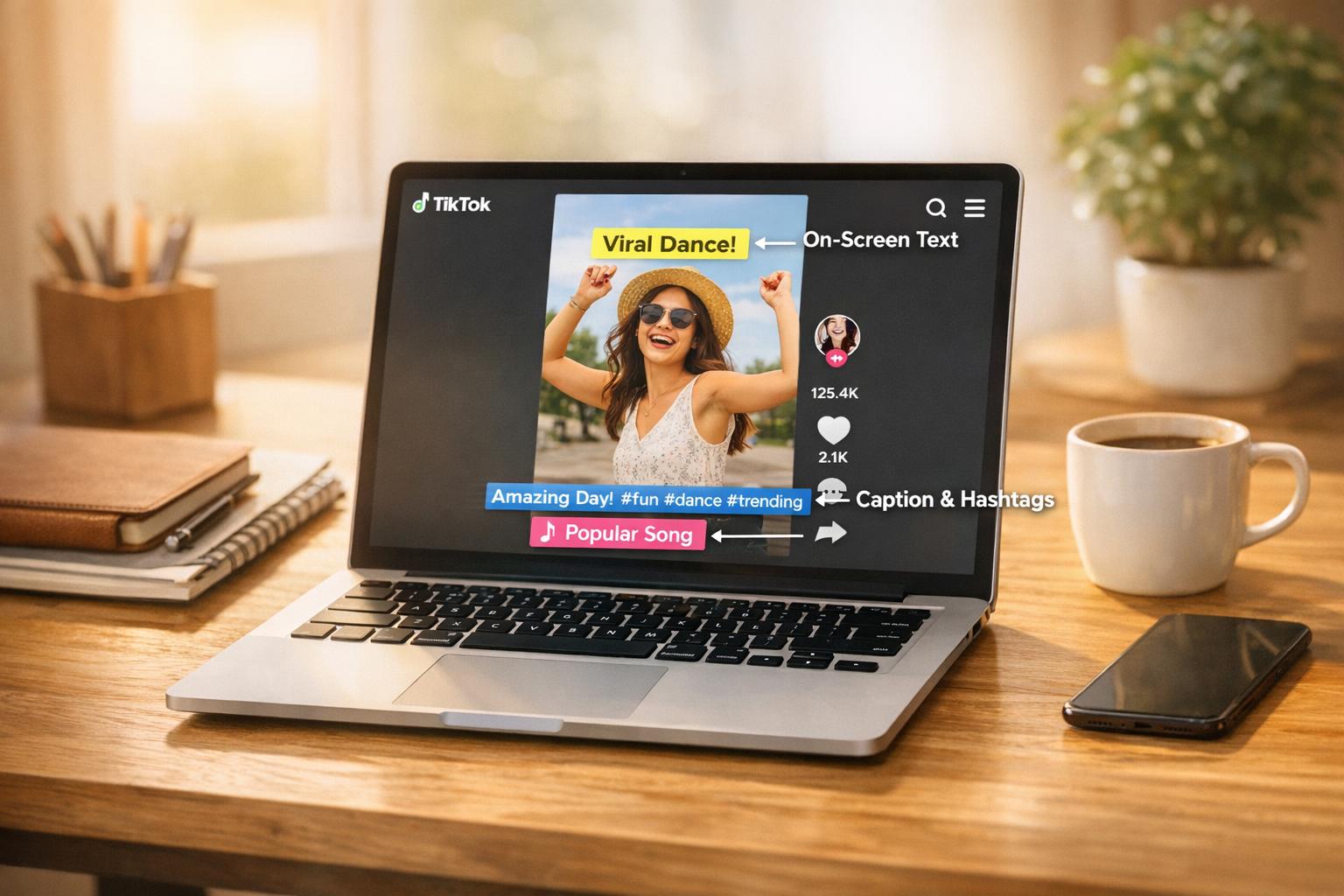
One more tip: Instagram and TikTok now index on-screen text for search . Including relevant keywords in your captions can help your videos get discovered while still connecting with viewers on an emotional level.
Finalizing and Publishing Your Edited Videos
Take a moment to carefully review your video before hitting publish.
Previewing and Refining Text Placement
Start by previewing your video to ensure the text timing aligns perfectly. Use the "Set duration" feature, identified by a clock icon, for precise frame-by-frame adjustments.
Keep your text within the safe zone - steer clear of the bottom 25% and top 15% of the screen to avoid overlapping with interface elements. Tools like drag-and-drop positioning and snap-to-grid features make it easy to align text neatly without any guesswork.
"Strategic text placement transforms casual viewers into engaged prospects, helping you achieve measurable business results through social video."
- Keith Kakadia, Founder, Sociallyin
Check that your text meets a minimum contrast ratio of 4.5:1 for readability. White text with a black outline remains a tried-and-true option for visibility across devices. Stick to 1–2 lines of text per element - this keeps your video clean and helps maintain viewer attention. If you’re using automatic captions, always review them carefully to catch any errors.
Once your text is polished, focus on optimizing your video settings for better algorithm performance.
Optimizing for TikTok and Reels Algorithms
Fine-tuning your video can significantly enhance its performance on TikTok and Instagram Reels. Both platforms analyze on-screen text, so incorporating relevant keywords naturally within your captions can improve searchability. Since over 80% of TikTok users often watch videos without sound, having clear, well-placed text is crucial.
Export your video at 1080x1920 pixels (9:16 aspect ratio, up to 60 fps) to ensure high-quality playback. In your video description, prioritize key details and your call-to-action in the first line, as TikTok tends to truncate longer captions.
Avoid awkward pauses that might disrupt the flow. Instead, synchronize your text reveals with natural speech breaks or music beats. Well-timed transitions can boost average watch time by as much as 20%.
Scheduling and Automation with OpenClip
Once your video is polished and ready, save time with automation tools like OpenClip. This platform simplifies the entire publishing process by handling transcription, speaker detection, and multi-format exports automatically. Upload a long-form video, and OpenClip’s AI will identify viral moments, generate captions, and create platform-specific clips.
Its smart reframe feature adjusts horizontal videos into 9:16, 1:1, or 16:9 formats, ensuring faces stay centered and captions remain within the safe zone. You can even edit directly within the transcript - highlight text to trim sections or remove filler words with a single click.
Each clip is assigned a confidence score to streamline approvals. Once you approve the final edits, OpenClip automatically schedules posts across TikTok, Instagram Reels, YouTube Shorts, X, and LinkedIn. This ensures a consistent posting schedule without the hassle of manual uploads.
"Approve the lineup and auto-schedule across TikTok, Reels, Shorts, X, and LinkedIn."
- OpenClip
Conclusion
Text-based editing has become a game-changer for turning eye-catching content into effective converters. With over 80% of TikTok users watching videos without sound, captions aren’t just an add-on - they’re the main way to communicate. In fact, videos with well-placed text overlays can increase watch time by 12% to 40%, which directly helps with algorithm performance.
The difference between amateur and professional results often lies in details like high-contrast text, proper placement within the safe zones, and perfectly timed overlays. These techniques work seamlessly with native app tools and advanced platforms like OpenClip, creating a cohesive strategy. But let’s face it - manually editing every video is a time drain, especially when quick posting is crucial. That’s where scalable, automated solutions step in.
Automation tools like OpenClip simplify the process, delivering high-quality captions and faster posting. What used to take hours can now be done in minutes, all while maintaining strong engagement. To ensure top-notch results, always double-check your captions for typos, placement, and a strong hook. These final touches protect your credibility and enhance algorithmic performance. For example, Grant Cardone Enterprises managed to double their daily content output by using AI-powered clipping tools.
The best creators know how to squeeze more value out of their existing footage through smart text editing and automation. This approach doesn’t just boost engagement - it’s reshaping how content is made for platforms like TikTok and Reels.
FAQs
How does adding text to videos boost engagement on TikTok and Reels?
Adding captions and text overlays to your videos can make a huge difference in how they perform on TikTok and Instagram Reels. With over 80% of users watching short-form videos without sound, captions become essential for grabbing attention and keeping viewers engaged. Plus, when people stick around longer to watch your video, it signals the platform’s algorithm that your content is worth showing to more people, boosting visibility and interaction.
To make your captions even more effective, try syncing key phrases with specific visuals - like timing a punchline perfectly or emphasizing a call-to-action. Using multiple text layers that appear at just the right moments can also help keep the flow natural and engaging. Don’t forget to customize fonts and colors to match your brand’s style; it’s a small touch that can make your videos stand out. Tools like OpenClip can save you time by automatically generating captions, identifying key moments, and even suggesting text hooks that draw viewers in. This way, you can create eye-catching, text-rich videos without spending hours on editing.
How can I time and position text overlays effectively for TikTok and Reels?
When adding text overlays, timing plays a crucial role. Display text at moments when it delivers the most impact, ensuring it stays on-screen long enough to be read without interrupting the flow. Introduce key messages within the first 3 seconds to capture attention, and time additional text to coincide with visual or audio cues. For short statements, 1–2 second bursts are ideal, while longer messages or calls-to-action should remain visible for 3–4 seconds. Align captions with spoken words or actions, and use smooth transitions like fades to keep changes seamless.
For placement, make sure text stays within the “safe zone” to avoid overlapping with TikTok's or Instagram's UI elements. Ideal spots include the center-top, center-bottom, or along the left/right thirds of the screen. Opt for high-contrast colors and clean, legible fonts to ensure readability, especially on mobile screens. Avoid placing text over cluttered backgrounds, and if you're using multiple overlays, stagger them vertically or incorporate quick pop-ups to keep the design neat and uncluttered.
To streamline the process, OpenClip can automatically generate captions and highlight clips that adhere to these guidelines, making it easier to scale your content creation while maintaining quality.
How can automation tools like OpenClip make video editing faster and easier?
Automation takes the hassle out of video editing by using AI to tackle tedious tasks like transcription, identifying speakers, and pinpointing standout moments. It also makes tasks like creating captions, resizing videos for various formats, and scheduling posts much smoother. This means creators can spend more time on storytelling while delivering polished videos in far less time - saving 10 or more hours of work every week.
Turn one video into a week of content.
Try OpenClip free